Get started with Future opportunities
Getting Started
Future Opportunities
Part 1 - Select or build a Filter —
The Future Opportunities tool helps you identify contracts that are expiring soon, so you can proactively monitor upcoming tender opportunities, competitors, and buyers.
To open the tool in Tendium:
Go to Find in the left-hand menu.
Click Future Opportunities in the top tab section.
From here, you can begin building and saving filters to monitor upcoming opportunities.
At the top of your filter settings, you can switch between:
Your saved Tender Filters
Your Analytics Filters
All Tenders
To use an existing filter:
Click the small arrow in the filter selector.
Choose the filter you want to use.
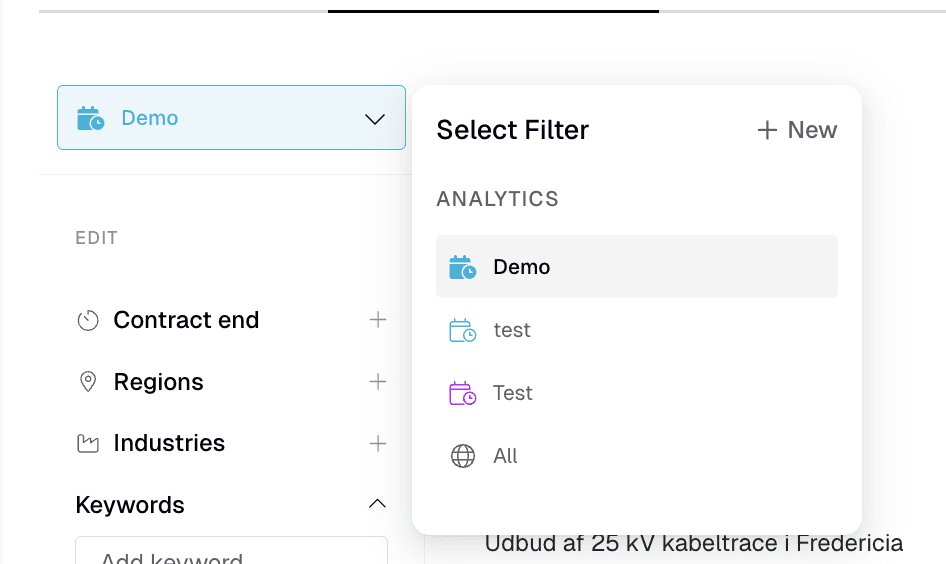
If you use an existing filter, you can jump to Part 2 in this guide. To start from scratch and build a new filter, select All to create a new empty filter and follow the steps below to setting your filter up.
Quick overview of the filter options
Below the Edit section you’ll find the available filtering options:
Contract end
Select which time period you want to look at.
Regions
Select specific countries or regions to filter on.
Industries
Select which CPV codes you want to filter on.
Keywords
Select certain keywords to filter on.
Contract value
If you only want to look at contracts at a specific value, you can use the Contract value filter to focus on tenders within a specific value range.
Suppliers
Select certain suppliers to look at their ongoing contracts.
Buyers
Select certain buyers to filter on their ongoing contracts.
You can combine multiple filters to narrow down relevant future opportunities. Below, you can find more information about the different filtering options.
Contract end date
Use the Contract end filter to find tenders that are expiring within a specific time period.
Click Contract end and enter a time period you would like to filter on
Example:
Enter 6–12 months to see tenders expiring within that period from today's date. You can also change from time span to specific dates (e.g from 1st of January to 31st of December) by clicking the small arrow next to “Time Span” and selecting “Date range”.
End date options
By default, Tendium uses the last possible contract end date, including extensions. You can also choose to view the original contract end date (without extension periods) or both original contract end date and extended end dates.
In most cases, the last possible end date gives the most relevant future opportunities since most buyers use available extension periods.
Industry codes
Use the Industries filter to monitor specific CPV codes.
Click on Industries
Search for or select relevant industry codes in the list
Add the codes you want to filter on
This helps narrow your results to relevant procurements.
Keywords
Use keywords to further refine your search results. Click on Keywords and type the keyword you would like to add, and click “Add” or hit Enter on your keyboard
By default, Tendium searches for keywords in the tender notices and the tender documents. You can change this in the Advanced keyword settings.
Advanced keyword settings
For Future Opportunities, a more narrow keyword search is often recommended to improve relevance.
Click Advanced settings below the keyword field
Choose between:
Broad filter logic or Narrow filter logic to select if you want to search for the keyword(s) within or outside of your selected Industry codes.
You can also select to only search for the keyword in the title/notice of the tender and choose if you want to search for the exact match or “Begins with”.
This works similarly to keyword settings in your regular Tender Filters.
Suppliers
You can also use Future Opportunities to analyse other suppliers and/or competitors
Go to the filter selection tab
Select All
Add one or more suppliers under the Suppliers filter
When typing a supplier name, Tendium will show matching suggestions. Make sure to:
Select the correct supplier in the list
Verify the organisation number shown beside the supplier name
By default, Tendium shows all tenders a supplier has participated in. To only see their awarded contracts, you can change from All to Won in the Status field.
You can add several suppliers to the same filter to compare their active and historical tenders in one view.
If needed, use keywords and/or Industry codes to narrow down your search results.
Buyers
You can also monitor procurement activity from specific buyers. Under the Buyers tab, you can filter by:
Municipality
Region
State agency
Other buyer types
You can also search for and select individual buyers.
Example
If you only want to monitor tenders from Trafikverket:
Search for Trafikverket as a buyer
Select it from the list (make sure you select the correct name with the org. nr next to it in the list)
You can also search for organisational numbers instead of the buyer name, If needed, use keywords and/or Industry codes to narrow down your search results.
Saving your Filter
Once your filter setup is complete:
Click Save changes
Enter a filter name
Click Add
This allows you to quickly revisit the same search later. If you want to revert your latest changes simply click Undo. This restores the filter to its previous saved state.
To change permissions and handle notification settings on your filter you can easily access this by clicking “Options” in the top right corner.
Part 2 - Viewing tender details
Click on a tender title to open detailed information. The Outcome tab contains information about awarded suppliers and payment data.
Here you can:
See which supplier(s) won the contract and have it today
Access tender evaluation documents
Further down in the tender view, you find available payment information showing how much the buyer has paid the supplier during the contract period.
Important note
If the supplier has multiple contracts with the same buyer, the payment figures include payouts across all those contracts. The graphs always display the total payouts from a buyer to the supplier(s).